Multi-Monitor Setup Guide
This guide will walk users through enabling and disabling the multi-monitor setup in OmegaAI ensuring optimal use of Image Viewer, Document Viewer, and Scheduler functionalities across multiple displays.
Pre-Requisite
Ensure you’re using a compatible browser such as Google Chrome or Microsoft Edge, and that window management (pop-ups) are properly configured for www.omegaai.com (see System Requirements ).
Enabling multi-monitor support without granting window management permission in the browser may cause some monitors to not display expected windows, such as the image viewer.
Enabling Multi-Monitor Setup
Login and Navigation
-
Log in to your OmegaAI account.
-
Click the My Profile icon at the bottom-left corner.

- In the sidebar, select User Settings.

Access Display Settings
- On the User Profile page, under the left panel, click the Display Settings icon (monitor symbol below “Organization and Roles”).

- First-time users will see a pop-up:
www.omegaai.com wants to manage windows on all your displays.
3. Click Allow to continue.

Configure Each Monitor
- Once detected, OmegaAI will show all connected screens.
- Click the Edit (pencil icon) on the top-right to enter edit mode.

- Each monitor will show a dotted square icon in the center.

- Click this icon to assign a view from the following options:
- Image Viewer
- Document Viewer
- Scheduler
- Reset Selection (resets to default)

Note:
Only “Image Viewer” can be applied to multiple screens simultaneously.
Document Viewer or Scheduler can only be assigned to one monitor at a time; selecting it on a second monitor will unassign it from the first.
- After assigning views, click Save to finalize your layout.

Using Multi-Monitor in Action
- When you open a study from the Worklist, OmegaAI auto-triggers the multi-monitor layout:
- Document Viewer opens on its assigned screen.
- Image Viewer and Scheduler populate their designated monitors.

- In the Image Viewer, you can:
- Select different layouts to view multiple image sections.
- Exit full-screen via the three-dot menu > scroll down > toggle off Full Screen Mode to see navigation panels on the main screen.
- The main monitor allows access to:
- Worklist
- Home
- Organizations
- Back button (top-left corner)
- Left and right menu panels (when not in full screen)
Navigating Away and Refreshing
- When you click Back from the main screen, the secondary screens go black.
- Selecting a new study from the Worklist will re-populate the assigned displays as per the saved configuration.
Disabling Multi-Monitor Setup
You can disable the multi-monitor setup in either of the following ways:
Disable from Display Settings
- Go to Profile > User Settings > Display Settings.
- Use the Toggle Button on the top-right to disable multi-monitor functionality.

Reset Individual Screens
- Click the Edit (pencil icon) on Display Settings.
- On each monitor, click the dotted square icon.
- Choose the Reset Selection to revert to the default and remove any assigned views.
Note:
Manual disabling of the multi-monitor setup is not required when using a single monitor. The system will automatically operate in single-monitor mode if only one display is detected and will switch to multi-monitor mode when multiple displays are available.

- Save changes to complete.
Browser Configuration for Multi-Monitor Setup
For Google Chrome
Enable Pop-ups and Window Management:
- Open Chrome and go to www.omegaai.com
- Click the Site Settings icon next to the URL in the address bar.

- From the dropdown, click Site settings.
- Find Pop-ups and redirects and Window Management in the list.
- Change the setting to Allow.


For the Installed OmegaAI Application: Enable Pop-ups and Window Management
- Open the OmegaAI installed app on your computer.
- Click the three dots (⋯) in the top-right corner of the app window.
- From the dropdown menu, select App info.

- In the App info dropdown, click on Settings.

- In App settings, go to More settings and permissions.

- In the Permissions section, make sure:
- Pop-ups and redirects is set to Allow.
- Window management is set to Allow.


- Close the settings tab and return to the OmegaAI app --- your changes will be saved automatically.
Alternative method: Enable pop-ups and redirects.
- Click the three-dot menu (top-right corner) > Settings.

- Go to Privacy and Security > Site Settings > Pop-ups and redirects.
- Or copy and paste the following URL directly into the Chrome address bar: chrome://settings/content/popups
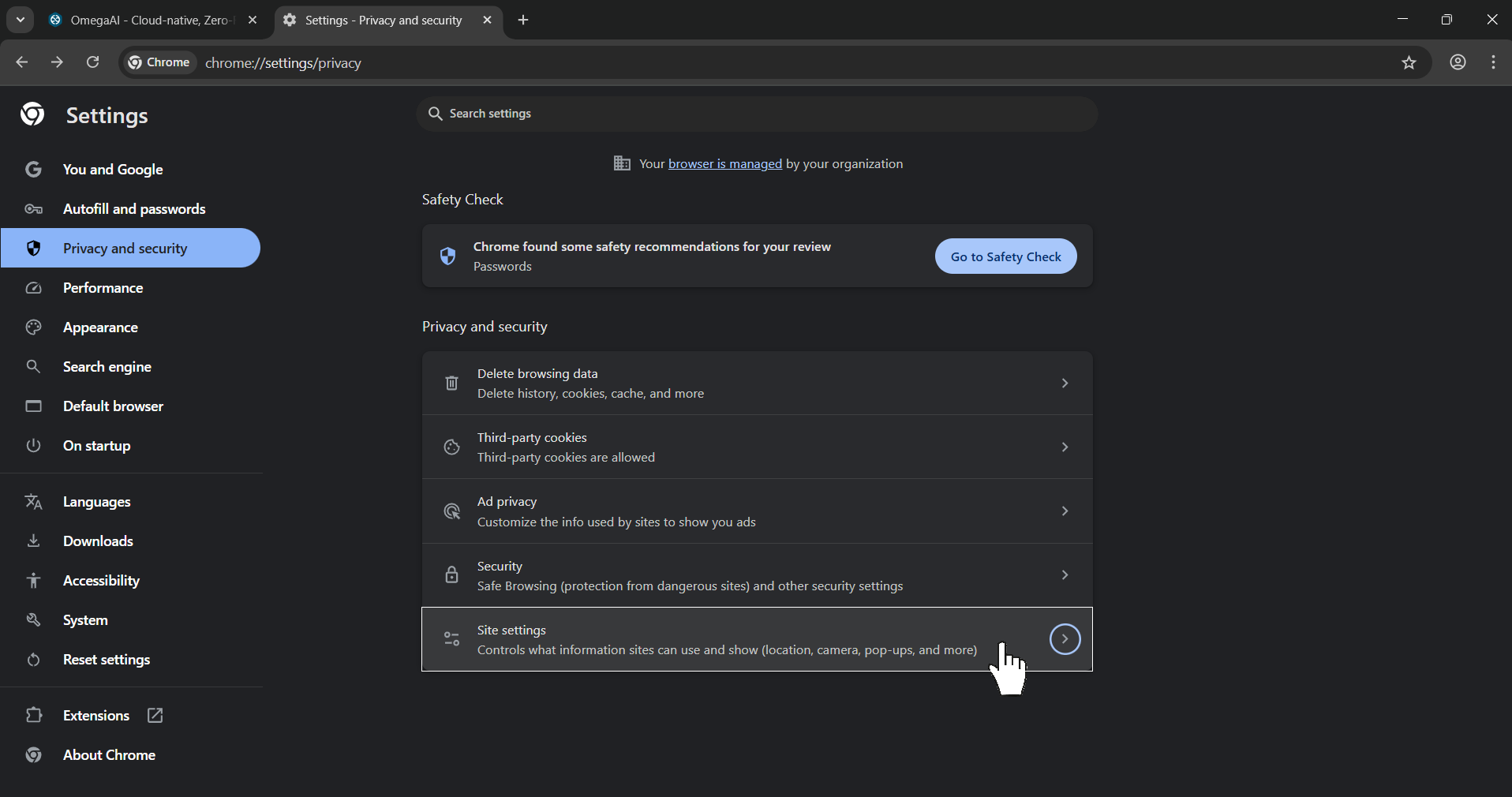

- Under Allowed to send pop-ups and use redirects, add: www.omegaai.com

Alternative method: Enable Window management.
- Go to Settings > Privacy and Security > Site> Settings > Window management
- In Site settings, scroll down to Permissions, then click Additional permissions to find Window management.
- Or copy and paste the following URL directly into the Chrome address bar: chrome://settings/content/windowManagement

- Under Allowed to manage windows on all your displays, Add: www.omegaai.com

Disable Pop-ups (if needed):
- Follow the steps above to navigate to Pop-ups and redirects.
- Under "Allowed to send pop-ups and use redirects," click the three-dot menu next to www.omegaai.com and choose Block or Remove.

For Microsoft Edge
Enable Pop-ups and Window Management:
- Go to www.omegaai.com
- Click the lock icon next to the URL in the address bar.

- Select Permissions for this site.
- Look for pop-ups, redirects, and window management in the list.
- From the dropdown menu, select Allow


For the Installed OmegaAI Application: Enable Pop-ups and Window Management
- Open the OmegaAI installed app on your computer.
- Click the three dots (⋯) in the top-right corner of the app window.
- Select App settings from the dropdown menu.

- In the App settings window, locate the Permissions section.
- Click on See permission details for www.omegaai.com.

- In the new window, ensure that:
- Pop-ups and redirects is set to Allow.
- Window management is set to Allow.

Alternative method: Enable Pop-ups and redirects.
- Open Edge > Click the three-dot menu (top-right corner) > Settings.

- Go to Privacy, search, and services > Site permissions > All permissions> Pop-ups and redirects
- Or, copy and paste the following URL directly into the Edge address bar : edge://settings/privacy/sitePermissions/allPermissions/popups
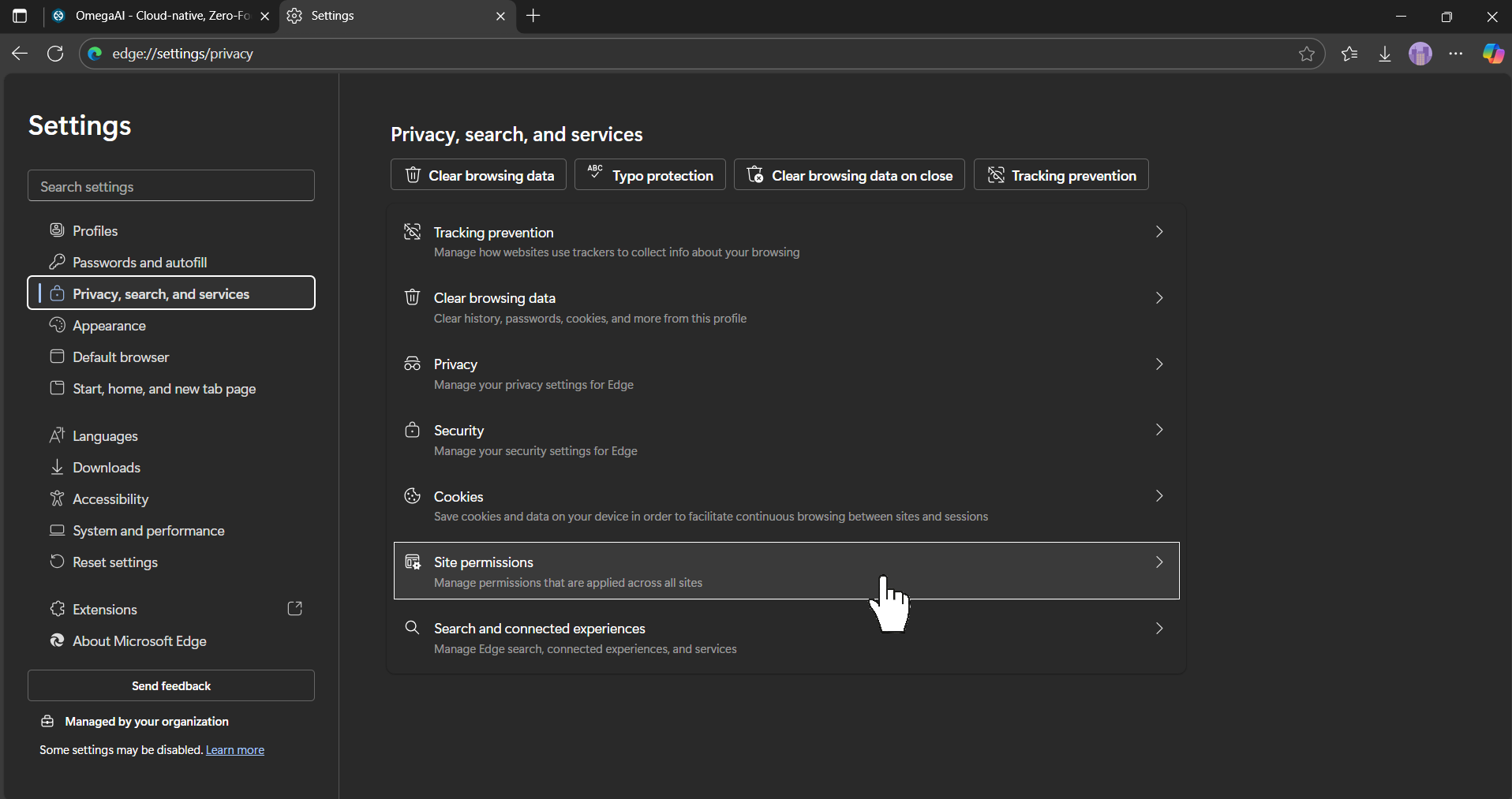
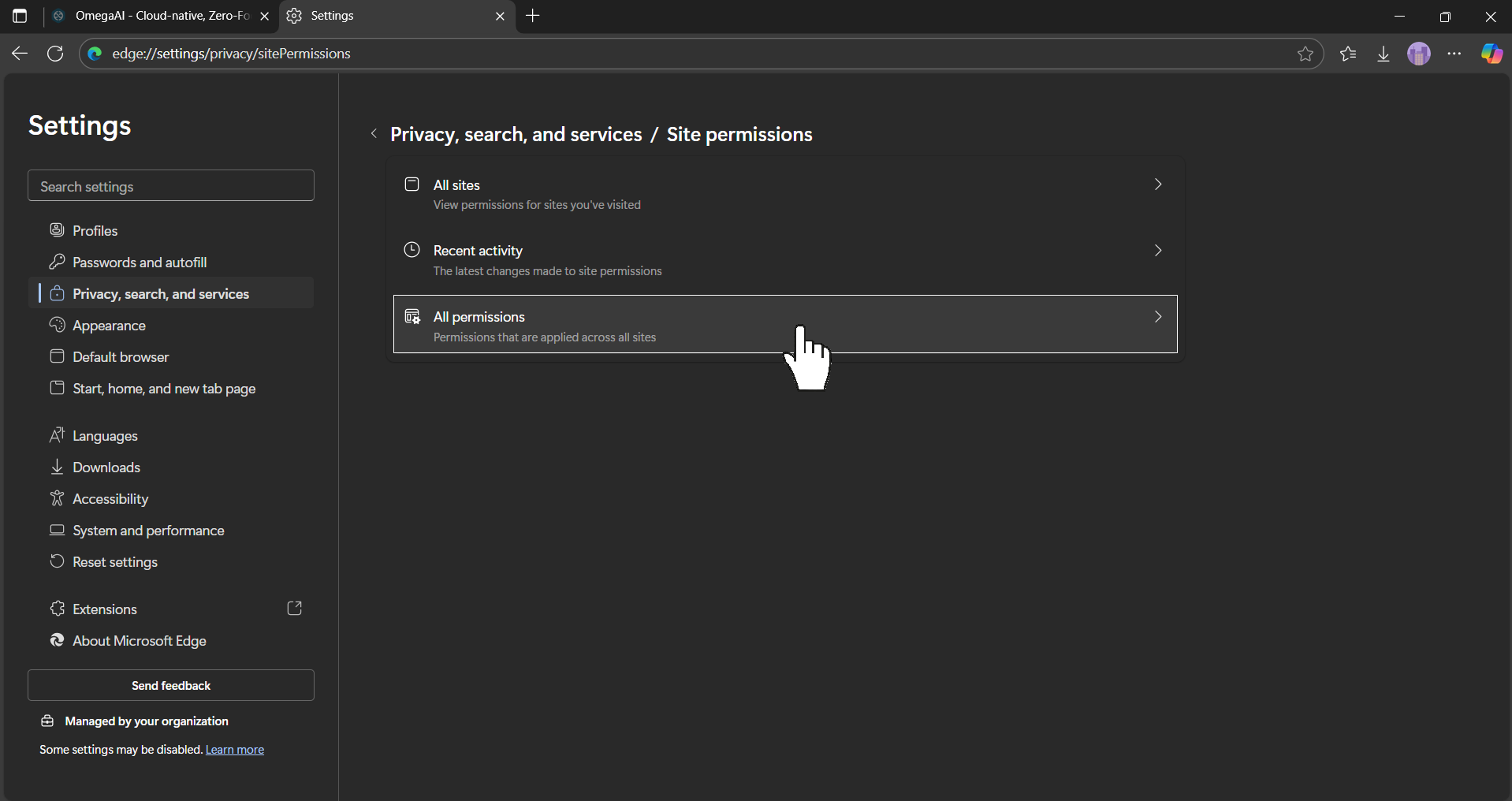

- Click Add site www.omegaai.com under Allowed to send pop-ups and use redirects.

Alternative method: Enable Window management.
- Go to Settings> Privacy, search, and services > Site permissions > All permissions > Window management
- Or copy and paste the following URL directly into the Edge addressbar: edge://settings/privacy/sitePermissions/allPermissions/windowManagement

- Under Default behaviour, switch the toggle to Allowed (recommended).

Disable Pop-ups (if needed):
- In the Pop-ups and redirects section, locate www.omegaai.com under the "Allowed to send pop-ups and use redirects" list.
- Click the three-dot menu next to it, then select Remove or switch it to Block to prevent pop-ups.

Summary Table
| Task | Action |
|---|---|
| Enable multi-monitor | Profile > User Settings > Display Settings > Assign screens > Save |
| Disable multi-monitor | Use the Toggle Button OR reset screens individually |
| Supported Views | Image Viewer (multiple), Document Viewer, Scheduler (only one screen at a time) |
| Browser Setup | Allow pop-ups for www.omegaai.com in Chrome/Edge |